Importing Credit Cards Transactions into QuickBooks
By J. Carlton Collins
Have you ever entered a credit card statement into QuickBooks? It can be a tedious task, especially when you have a 4 or 5 page credit card statement. Not only can it take several hours to accomplish this task, the results often contain an input error that can be difficult to find. The solution is to log into your credit card online and download the activity instead. Here are the steps:
1. Log into credit card online. The proper URL will be printed on the back of your credit card. The first time you perform this operation, you will be asked many security questions. You will also create a user name and password. The resulting security will be tied to your computer’s MAC (machine) unique address, so in the future, you will only be able to access your credit card online from that same computer.
2. Search the credit card help for instructions for downloading transactions into a QuickBooks format. The process will be slightly different for each credit card company. Complete the download.
3. In QuickBooks, you will need to set up a new credit card account – this process is similar to setting up a new bank account.
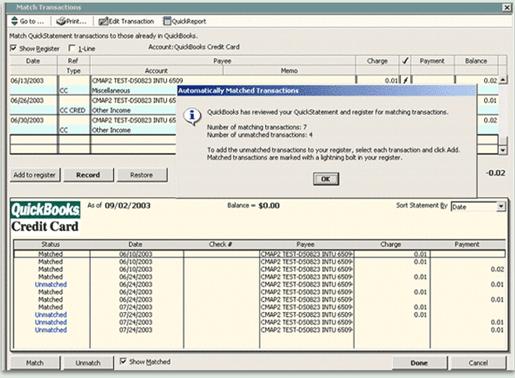
4. In QuickBooks, use the “File, Utilities, Import” option to import the transactions. Once completed, QuickBooks will automatically open a screen that displays the transactions on the bottom of the page, and the credit card account register at the top.
5. Next you need to visit each transaction and add it to the register, apply an account number and insert a memo description, and record. Repeat this process for all transactions. This process is called “Matching”.
a. In the future, QuickBooks will automatically match transactions it recognizes to the proper account. You will still need to enter a suitable memo description for each transaction.
b. Note the Alias feature which enables you to add an alias vendor name such as “Gasoline” to which all future gasoline purchases can be applied, even if you purchase from different gasoline stations.
c. Not the “Process multiple Transactions” feature which would allow you to process all of your gasoline transactions in one step, instead of individual steps.
In the end, all this process really does is prevent you from having to input the date, description and amount for each credit card transaction – but that is enough. The result is that it saves time and improves accuracy.
Carlton’s Hint - Importing credit card sales transactions or bank account information to facilitate a bank reconciliation works almost the same way.