Working with Macros in Excel 2007?
By J. Carlton Collins
Macros offer a powerful and flexible way to extend the features of Excel. They allow the automation of repetitive tasks such as printing, formatting, configuring, or otherwise manipulating data in Excel. In its’ simplest form, a macro is a recording of your keystrokes. While macros represent one of the stronger features found in Excel, they are rather easy to create and use. There are six major points that I like to make about macros as follows.
Six Major Points for Creating Macros
1. Record, Use Excel, Stop Recording – To create a macro, simply turn on the macro recorder, use Excel as you normally do, then turn off the recorder. Presto – you have created a macro. While the process is simple from the user’s point of view, underneath the covers Excel creates a Visual Basic subroutine using sophisticated Visual Basic programming commands.
2. Macro Location – Macros can be stored in either of two locations, as follows:
a. The workbook you are using, or
b. Your Personal Macro Workbook (which by default is hidden from view)
If your macro applies to all workbooks, then store it in the Personal Macro Workbook so it will always be available in all of your Excel workbooks; otherwise store it in your current workbook. A macro stored in your current workbook will be embedded and included in the workbook, even if you e-mail the workbook to another user.
3. Assign your Macro to an Icon, Text or a Button – To make it easy to run your macro, you should assign it to a toolbar icon so it will always be available no matter which workbooks you have open. If the macro applies only to your current workbook, then assign it to Text or a macro Button so it will be quickly available in your current workbook.
4. Absolute versus Relative Macros – An “Absolute” macro will always affect the same cells each time whereas a “Relative” macro will affect those cells relative to where your cursor is positioned when you invoke the macro. It is crucial that you understand the difference.
5. Editing Macros – Once created, you can view and/or edit your macro using the View Macros option. This will open the macro subroutine in a Visual basic programming window and provide you with a plethora of VB tools.
6. Advanced Visual Basic Programming – For the truly ambitious CPA, in the Visual Basic Programming window, you have the necessary tools you need to build very sophisticated macros with dialog boxes, drop down menu options, check boxes, radio buttons – the whole works. I invite you to knock yourself out. To see all of this power, turn on the “Developer Tab” in “Excel Options” (see below).
Presented below are more detailed comments and step-by-step instructions for creating and invoking macros, followed by some example macros.
Steps for Creating A Macro
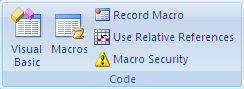
1. Launch Macro Recorder - Select Record Macros on the View tab, or in the Code Group on the Developer Tab.
2. Macro Name - Enter a name for the macro In the Macro Name box.
a. The first character of the macro name must be a letter.
b. Subsequent characters can be letters, numbers, or underscore characters.
c. Spaces cannot be used in a macro name (an underscore character is often used as a word separator.
d. If you use a macro name that is also a cell reference, you may get an error message that the macro name is not valid.
3. Shortcut – (This is optional) Assign a CTRL key combination (such as CTRL+A to run the macro by typing any lowercase letter or uppercase letter that you want to use in the Shortcut key box.
a. The shortcut key will override any equivalent default Excel shortcut key while the workbook that contains the macro is open.
4. Macro Location - In the Store Macro In dropdown box, select the workbook where you want to store the macro.
a. If you want a macro to be available in all Excel workbooks, select Personal Macro Workbook. When you select Personal Macro Workbook, Excel creates a hidden personal macro workbook (Personal.xlsb) if it does not already exist, and saves the macro in this workbook.
i. In Windows Vista, this workbook is saved in the C:\Users\username\AppData\Local\Microsoft\Excel\XLStart folder.
ii. In Microsoft Windows XP, this workbook is saved in the C:\Documents andSettings\user name\Application Data\Microsoft\Excel\XLStart folder.
iii. Workbooks in the XLStart folder are opened automatically whenever Excel starts.
b. Note - If you want the macro in the personal macro workbook to be run automatically in another workbook, you must also save that workbook in the XLStart folder so that both workbooks are opened when Excel starts.
5. Macro Description - In the Description box, type a description of the macro.
6. Start Recording - Click OK to start recording.
7. Start Typing - Perform the actions that you want to record. New in Excel 2010, macros can now record the manipulation of objects, such as inserting or moving a text box.
8. Stop Recording – When you are done click “Stop Recording” in the “Code Group” On the “Developer Tab”. You can also click Stop Recording on the left side of the status bar.
9. Assign the Macro to an Object, Graphic in the Worksheet – Insert an object (like a Star shape or text box) or graphic image (like a picture) in your worksheet, then right-click on that object or graphic image and select Assign Macro from the popup menu. In the Macro Name box, select the macro that you want to assign to that object or graphic image and click OK.
10. Menu Navigation Not Recorded – Keep in mind that when you record a macro, the macro recorder records all the steps required to complete the actions that you want your macro to perform. Navigation on the Ribbon is not included in the recorded steps, only the commands that are executed are recorded in the macro.
11. Turn On The Developer Tab – By default, the Developer tab is turned off, but you can turn it on in Excel 2010 by clicking the File tab select Options, Customize the Ribbon, and check the checkbox next to Developer Tab. In Excel 2007, click the Microsoft Office Start Button in Excel 2007, select Excel Options, and under the Popular category, Top options for working with Excel, select the Show Developer tab in the Ribbon check box, and then click OK.
12. Enable Macros – If the macro functions are disabled, you can enable them by selecting Macro Security in the Code group on the Developer tab as shown below.
Under Macro Settings, click Enable All Macros (this is not recommended by Microsoft because potentially dangerous code can then run without your approval), and then click OK.
13. Example Macros You Might Find Useful
A. Insert Headers and Footers Macro – Start recording a new macro called Insert_Headers. Select all of the worksheets, then from the Page Layout tab, double click the Page Setup dialog box button to display the Page Setup dialog box. Continue to customize the header and footers to include page numbers, date and time stamps, file locations, tab names, etc. Assign the macro to an Icon on your toolbar or Quick Access Bar for quick and easy access. Thereafter, inserting headers and footers in your worksheets will be a breeze.
B. Print Macros – Do you have a workbook containing multiple reports that you frequently print? If so, insert macro buttons to print each individual report, a group of reports, and even multiple reports, and in the future reporting will be a snap.
C. Delete Data Macro – Do you have a frequently used template that contains a lot of variables? If so, create a macro that visits each cell and erases that data, resetting the worksheet for use in a new set of criteria. Assign the macro to a macro button and you will never again have old assumptions mixed in with your newer template.
D. Macro Case Study – Molly’s Copy Shop – Click this link for a detailed case study for using macros.